Friday, May 8, 2015
Bridge the Gap
Bridging the gap between teacher use of technology and student use is a topic I’ve been looking at for a number of years. Back in 2006, a new program was started in Florida that was an effort to equip teachers with the knowledge needed to guide their students in the use of various tech tools. Back then, it started as teacher training in PowerPoint, GarageBand and iMovie (Mac), Audacity and Movie Maker (PC). As various other tools were developed (Evernote 2008), they too were shared with educators around the state.
Although the teachers did benefit from the four day training, it was often viewed as too much, not enough time to absorb everything and a multitude of other similar comments. We encouraged educators to try one new thing and to expand and try something else once their comfort level improved.
Teachers created numerous enhanced PowerPoint presentations with animations, sound, video clips and so forth. This added to their instruction and gave it a digital feel. But, what about the students? How do teachers bridge the gap and get kids to use technology in the educational setting.
It is true that students live with their phones these days. Have you seen a teen without a phone recently? As their digital world takes up much of their time they are gaming, communicating, creating, problem solving and more. Are educators channeling student knowledge into the classroom?
Is it enough to suggest that a book report be written and submitted via email or one of the many educational portals in use today? Would it be advantageous to have a student collaborate with another student who read the same book using Google Drive, create a drawing (Google Draw) that expresses the overall topic of the book and have it be included in the document, locate the book on Amazon to provide pricing info for those who may wish to purchase the book, share their report with a minimum of three other students and ask for comments?
It is time to see just what kids can do using the technology available to them. Provide opportunities to use these tools in new and creative ways. Give suggestions for various productivity tools and allow kids to choose what works for them.
You may find, Bridging the Gap: Technology Trends and Use of Technology in Schools, to be a good resource for a PLN discussion. (http://www.ifets.info/journals/16_2/6.pdf)
Sunday, July 27, 2014

Friday, June 27, 2014
Offline Google Tools
Google is offering productivity tools "outside" of Google Drive for mobile devices. Take a look, One Month After Microsoft Office Hits iPad, Google Debuts Dedicated Productivity Apps For iOS | TechCrunch . Google Docs and Google Sheets are available now and Google Slides is a recent addition. There is offline support so students will not have to connect to use these Apps.
Wednesday, June 11, 2014
Monday, June 9, 2014
RSS Read Feeder
Google Reader Alternatives
Feedly
Subscribe to new blogs using Feedly
Flipboard
If you have other suggestions, kindly share in comments.
Feedly
Subscribe to new blogs using Feedly
If you have other suggestions, kindly share in comments.


Friday, June 6, 2014
Google Search and Reading Levels
You are able to check the reading level of non-fiction text by using the advanced feature in Google Search.
.JPG)
How To Google Search By Reading Level
1. First, choose a term, and Google it as you always have, whether you’re looking for a copyright-free version of an American classic or National Geographic's Animal Jam.
2. Next, click “Advanced Search” which is located at the bottom of the search page.
3. Scroll to the bottom, and filter results by reading level. Use the drop down arrow to reveal your options for narrowing your search.
After you have clicked on the "Advanced Search" button, your search page will reload with this information located at the top of the page.
You are able to sort search results for the three levels.

PDF's in Google Drive
The use of Google Drive continues to provide folks with an alternative to the Microsoft Office suite of products. Parents will find this to be good news because a child's school work, done in Google Drive, will be available to that student when they log into a computer anywhere/anytime. So, they can finish an assignment at Grandma's or on a mobile device on the way to soccer practice or a doctor appointment. Many schools use Google Drive, which includes documents, presentations, drawing, and spreadsheets. This makes sharing assignments with their teacher a snap. One of the nice things Google Drive provides is the ability to download the item/document. One download choice is in pdf format and this is explained nicely in How to Create PDFs in Google Drive in Three Steps.
Share Google Docs as "View Only"
Here's a good tip from Richard Byrne: Make Copies of Google Documents Shared With You As "View Only." Screenshots and directions are provided. By sharing "view only," the original documents or presentations will not be able to be altered. This is really great for those sharing directions with students. However, students will be able to make a copy and then alter it. Consider creating a template for a book report or lab activity sheet, share 'view only'. Students are able to copy the template, complete, and share back with you.
YouTube Blocked?
If you are working at a school that blocks YouTube, consider checking out this shared Google Doc, Eighty Alternatives to YouTube.
Thursday, June 5, 2014
Using Digital Images
I’ve observed middle school students work on projects about U.S. landmarks, countries and cultures, science projects and more. Students are searching for resources on line, gathering information and copying photos. It seems that the students are not recording any information on where the images are coming from. There seems to be a lack of awareness, even on the instructor's part, that both text and images require a citation.
Students need guidance on what is allowed to be copied from the Web, and what isn’t. This could easily be a topic for a pre-writing activity. There are several resources on copyright within the Thinkfinity community. Do you know copyright law?, posted by Lynne Hoffman is one discussion post.Understanding Copyright in a Media-Rich World provides links to lessons for use in the classroom that will lead your students to respecting the work of others.
Many educators prefer to use only royalty free web sites when images are required as part of an assignment. Some instructors explain what Creative Commons is and use sites like Flickr. There are sites that offer many images that are available and are in the public domain. FCIT and Pics4Learning are two sites that are a source of royalty free images. I realize Google Images is one of the first resources that comes to the mind of many, but it isn’t necessarily the best tool to use in school. A good example of why not is that kids don’t always know the best keywords to use. Today, the use of “whitehouse” in a Google search and then selection of ‘images’ on the left, brought some very graphic images to view that were not of Washington.
This post is to act as a reminder that educators need to provide direct guidance and be available to intervene whenever students are working on the Web. As to citing sources, why not use BibMe? Students will find this to be very easy to use and guidance is provided to cite magazines, books, film, and the Web.Son of Citation Machine and EasyBib are similar sites. ReadWriteThink provides an internet search organizer.
Wednesday, June 4, 2014
Using Checklists
Many educators have found that there is nothing like a checklist to focus attention on necessary tasks. With the end of the school year approaching, many will find the varied lists made to include closing out their classroom, grading final papers and projects, and calculating grades for that final report card. The Checklist Manifesto is a book on making and using checklists. For those of us that use checklists and know they are a good thing, don't really need convincing from a book; we've been using them for years. Have you helped your students see the value of list making?
To Do lists are extremely popular. I've heard folks say to be sure at least one item is on the list that can immediately be checked off. That way you feel a sense of accomplishment and motivation. It seems to work for me. As with all things these days there are good Apps for helping one stay organized. Remember The Milk: Online to-do list and task management is a favorite of many.
Many schools provide their staff with an end of the year checklist. It is often the final thing submitted to the administration along with room keys before heading out for summer break. Summer should be a chance to replenish the patience level and interest in the subject one is teaching. So here are a few suggestions for your summer checklist:
Resources:
Why Checklists Work – ProfHacker - Blogs - The Chronicle of Higher Education
The Checklist Manifesto: How to Get Things Right: Atul Gawande: 9780805091748: Amazon.com: Books
Editing Checklist for Self- and Peer Editing - ReadWriteThink
Homework Checklist
Quality Rubrics / Checklists
Essay Writing Checklist
Checklist for Papers and Speeches
Classroom Arrangement Checklist
Every Teacher's Checklist for Struggling Readers
To Do lists are extremely popular. I've heard folks say to be sure at least one item is on the list that can immediately be checked off. That way you feel a sense of accomplishment and motivation. It seems to work for me. As with all things these days there are good Apps for helping one stay organized. Remember The Milk: Online to-do list and task management is a favorite of many.
Many schools provide their staff with an end of the year checklist. It is often the final thing submitted to the administration along with room keys before heading out for summer break. Summer should be a chance to replenish the patience level and interest in the subject one is teaching. So here are a few suggestions for your summer checklist:
__Take time to enjoy the special moments of a day
__Treat yourself the gift of time to spend with someone special
__Read a book
__Write, email, or call family and friends you've not touched base with in awhile
__Rent or go see a movie
__Enjoy a day in the sun and at the beach
__Lunch with friends
Resources:
Why Checklists Work – ProfHacker - Blogs - The Chronicle of Higher Education
The Checklist Manifesto: How to Get Things Right: Atul Gawande: 9780805091748: Amazon.com: Books
Editing Checklist for Self- and Peer Editing - ReadWriteThink
Homework Checklist
Quality Rubrics / Checklists
Essay Writing Checklist
Checklist for Papers and Speeches
Classroom Arrangement Checklist
Every Teacher's Checklist for Struggling Readers
Well done!
 Educators! You made it. Perhaps this has been your first year of teaching. How'd it go? What did you learn? Are you happy? Are you already thinking of things to do next year? Remember to rest and relax over the summer. Recharge yourself. Take time to smell the flowers and enjoy the sunshine. You've earned some time for yourself!
Congratulations to all those folks retiring from education this year! You have much to be proud of!
Friday, May 30, 2014
Wealth of Web Resources
Wealth of Web Resources
created by Jeanne Rogers on Feb 17, 2014
There are so many wonderful resources available on the web for educators, students, families.
Curriculum
WordTamer is an interactive site that addresses writing. Students will find information on genres of stories, character development, plot and more.
Storycamp Resources offers teaching kits for the creation of web native films. Students will learn about media history, media use, web mechanics and more. Collaborate with others while making interactive projects for the web.
BuzzMath is a website and mobile application (iPad App - Buzzmath) that focuses on learning andpracticing middle school mathematics skills.
Digital Passport by Common Sense Media Check out the new iPad and Android App! Please note thatstudent accounts and seeing scores, are ONLY available on the Digital Passport website, NOT through the mobile app.
NoRedInk offers online practice exercises for grammar and writing.
HowtoSmile offers a wealth of science and math activities.
Productivity
Symbaloo | Access your bookmarks anywhere by preparing a start page for your favorite sites.
AndrOpen Office Released December 19, 2013
First OpenOffice for Android app. You are able to view documents, edit, export using the full features you have come to love with OpenOffice.
MindMup is a free mind mapping web based app. MindMup is available and works well on the desktop,tablet, and mobile browsers. MindMup maps can be saved to Google Drive.
Blendspace, formerly EdCanvas, is a free resource for educators. Collect web resources, assess student understanding, and monitor student progress. Read more at tuesdays with Karen: Blendspace.
Apps
Frolyc | Authoring & Real-time Publishing On iPad For K-6 Teachers create learning activities and publish to the iPad.
Doodle Cast Pro is now a free app for the iPad. Not sure for how long, but worth checking out. Really good App for presentations
Animate Your Life | Tellagami is a new app for both iOS and Android devices. Use it to share animated messages. Ryan Archer, Science Teacher, shares information on this app, Bow and Tech: What the Gami?.
Tuesday, May 20, 2014
PowerPoint Overload
There have been many times when I have needed to present information in an engaging manner. Sure, the classroom is one place, but teacher training is another. I've been to presentations where the presenter actually reads directly from the slides of the presentation, word for word. Yawn! Today there are many tools available for presentations, yet many educators continue to rely on Microsoft PowerPoint.
I read an article entitled, Death by PowerPoint, and am not surprised at the number of tutorials and how to's that cover PowerPoint use and overuse. It seems that many have relied on PowerPoint for sharing information both in education and in business. It is interesting to note that panic often sets in when the projector fails to work. Heaven forbid the individual would need to adjust their presentation! (Those in the 'know' always have a back up plan.)
On a recent flight to San Francisco, the gentleman beside me spent nearly all of his time working on a PowerPoint presentation. He was adding slides, deleting slides, adding graphics, attempting to add animation and more. Whenever one presents, they need to keep their audience in mind. In a school setting, do all core subject teachers use PowerPoint during the course of the day? Is there such a thing as PowerPoint overload?
I've heard the word PowerPoint used in place of the word presentation. PowerPoint is a Microsoft product. It is a presentation tool. As mentioned above, there are many presentation tools available. Keynote is Apple's presentation tool and comes standard with any Mac purchased. Google Slides is a presentation tool and offers the ability to collaborate on the presentation.
One way to integrate technology into your presentation is to use Padlet (32 interesting ways to use Padlet (Wallwisher) in your classroom). Present a question to your "audience" and have participants respond using Padlet.
Have you ever shared electronic files? You would be able to create files of graphics, journal articles, assignments, class directions and procedures and so many more items. Those students that need a print copy have the opportunity to have one on their own. Students that need to enlarge text can do so when the files are shared electronically.
Create zooming presentations with Prezi. Create online course work using Edmoto or Moodle. Utilize Evernote. Dare to motivate and captivate your audience by offering variety to your presentations.
Saturday, May 17, 2014
Virtual Field Trips
Field trips are a time consuming endeavor. It takes time to plan, make curriculum connections, tend to individual student needs (medications), collect money and permission slips and more. I’d much rather enjoy a virtual field trip. The internet makes it possible to ‘travel’ to new places with a click of the mouse.
I’ve used Google Earth to show students the location of their school. When speaking about a part of the country or world, Google Earth literally brings the world within reach to the kids. Students truly see the world as it is. Jerome Burg is the founder of Google Lit Trips and brings a whole new understanding to literature through these downloadable lessons.
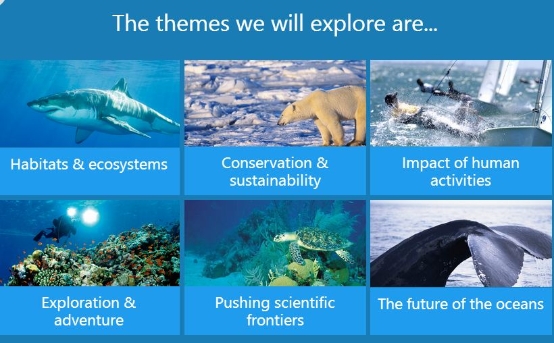
Using Skype last year for an author talk was a wonderful experience. Students read the book, The Bystander by James Preller, and a Skype conference call was arranged where selected students interacted with Mr. Preller while the conference was broadcast for the entire school. Exploring Oceans is the feature for the month of November 2013.
The National Parks electronic field trip program allows students to visit various parks that they might never travel to. Lesson plans are available to educators.
Additional
Parent & Afterschool Resources | Grades 3 – 5 | Activity & Project
Can't make it to a zoo? Observe animal habits and habitats using one of the many Webcams broadcasting from zoos and aquariums around the United States and the world.
Classroom Resources | Grades K – 2 | Lesson Plan | Standard Lesson
3, 2, 1... Blast off! Students learn new vocabulary by taking a virtual field trip to the moon, read-alouds, creating a picture dictionary, and completing a final writing activity.
Classroom Resources | Grades 3 – 5 | Lesson Plan | Recurring Lesson
Students observe animals using one of the many webcams broadcasting from zoos and aquariums around the United States and the world, with a focus on observation, discussion, questioning, and research.
History and Constitution Day
Constitution Day Resources
From EDSITEment:
From Scholastic: http://www2.scholastic.com/browse/collection.jsp?id=381
Poster Contest:
From Digital History:
http://www.digitalhistory.uh.edu/
Subscribe to:
Posts (Atom)